
- Grading/Completion Reporting Configuration
- Moodle Documentation Reference
- Revoking edX Access
- Credential Rotation
- Moodle Cloud requirement
- Additional setting for logging
Grading/Completion Reporting Configuration
In order for edX to send the final grade of a course to Moodle, an assignment needs to be created in Moodle (their API does not support creation of assignments).
As such, we decided on a simplified standardized assignment name: (edX integration) Final Grade
The instructor of each course can create this assignment as follows:
- Open the course via the Dashboard, My Courses, or even from the Home screen.
- Over on the far right should be a button that says “Turn editing on” - click that.
- Also on the right, you should now see a link that says “Add an activity or resource” - click on that.
- You’ll see a pop up window with a bunch of icons of activity types, click on “Assignment”.
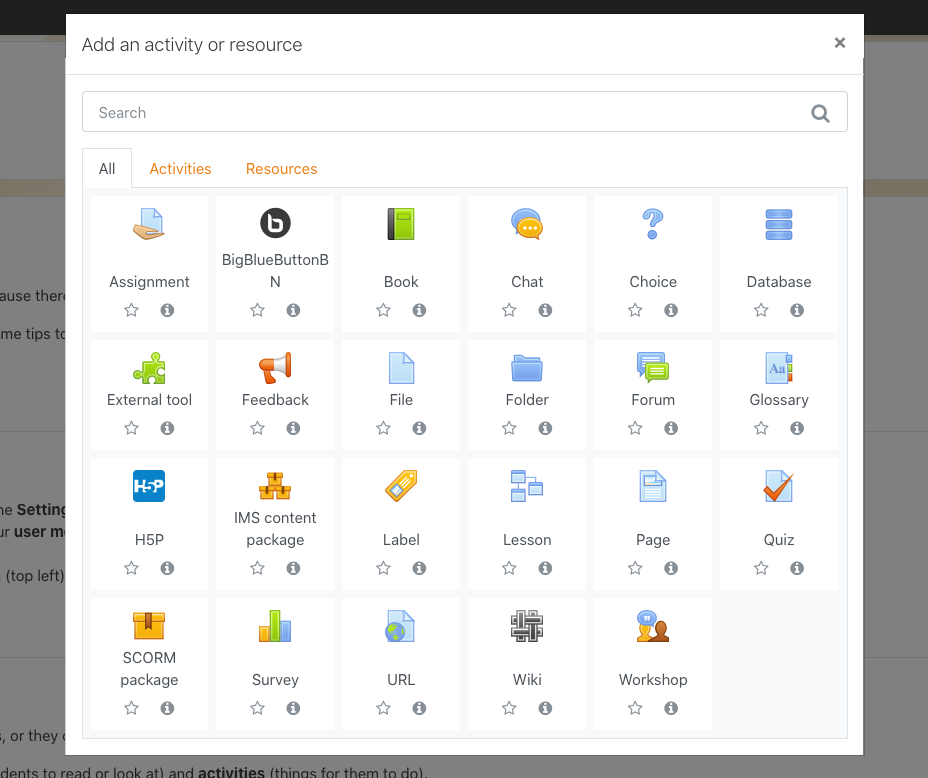
From here you should see a form with a lot of options, the only fields you need to fill in are specified as follows:
- Assignment name - this is the field that requires the name: (edX integration) Final Grade
- In the Availability section, uncheck every “Enable” box.
- In the Submission Types section, uncheck “File submissions”
- In the Submission Settings section, ensure all 3 fields are “No” and/or “Never”
- In the Grade section:
- The “Type” should be Point
- The Maximum value should be 100.
- And the Grading Method should be Simple direct grading
You can add other options here, but these are the bare minimum required.
Once those details have been filled in, click on “Save and return to course” at the bottom.
Any users enrolled in the edx and Moodle course will now have their grades transferred to Moodle.
Moodle Documentation Reference
These instructions, specifically for edX setup, are based on the documentation for Moodle. This additional reference material may be found at: https://docs.moodle.org/310/en/Using_web_services
Revoking edX Access
To revoke edX’s access, you should delete the generated token from step 8.
Credential Rotation
If credential rotation is needed, you will need to generate and provide edX a new token without immediately deleting the old one to allow for a no-downtime changeover. Once the changeover has been completed, the old token may be removed.
Moodle Cloud requirement
For Moodle Cloud setups specifically, you have to login as the webservice user and agree to the site policy.
Additional setting for logging
To improve logging over the API, you should enable debug logging.
- Navigate to Site Administration > Development > Debugging
- Next to “Debug messages” select “ALL: Show all reasonable PHP debug messages”
- Click “Save changes” at the bottom of the screen.