2.10 - Provide your Moodle URL and token to edX via the edX Admin Portal
Allyson Kummins
Updated
Login to the edX Admin Portal: https://portal.edx.org/ using your admin account (contact your edX Customer Success representative if you need help obtaining access)
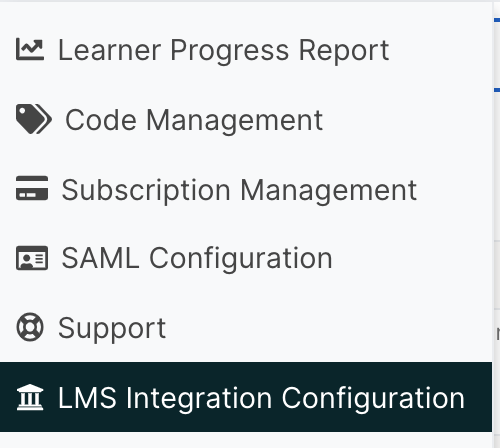
Using the Left toolbar, navigate to select LMS Integration Configuration option:
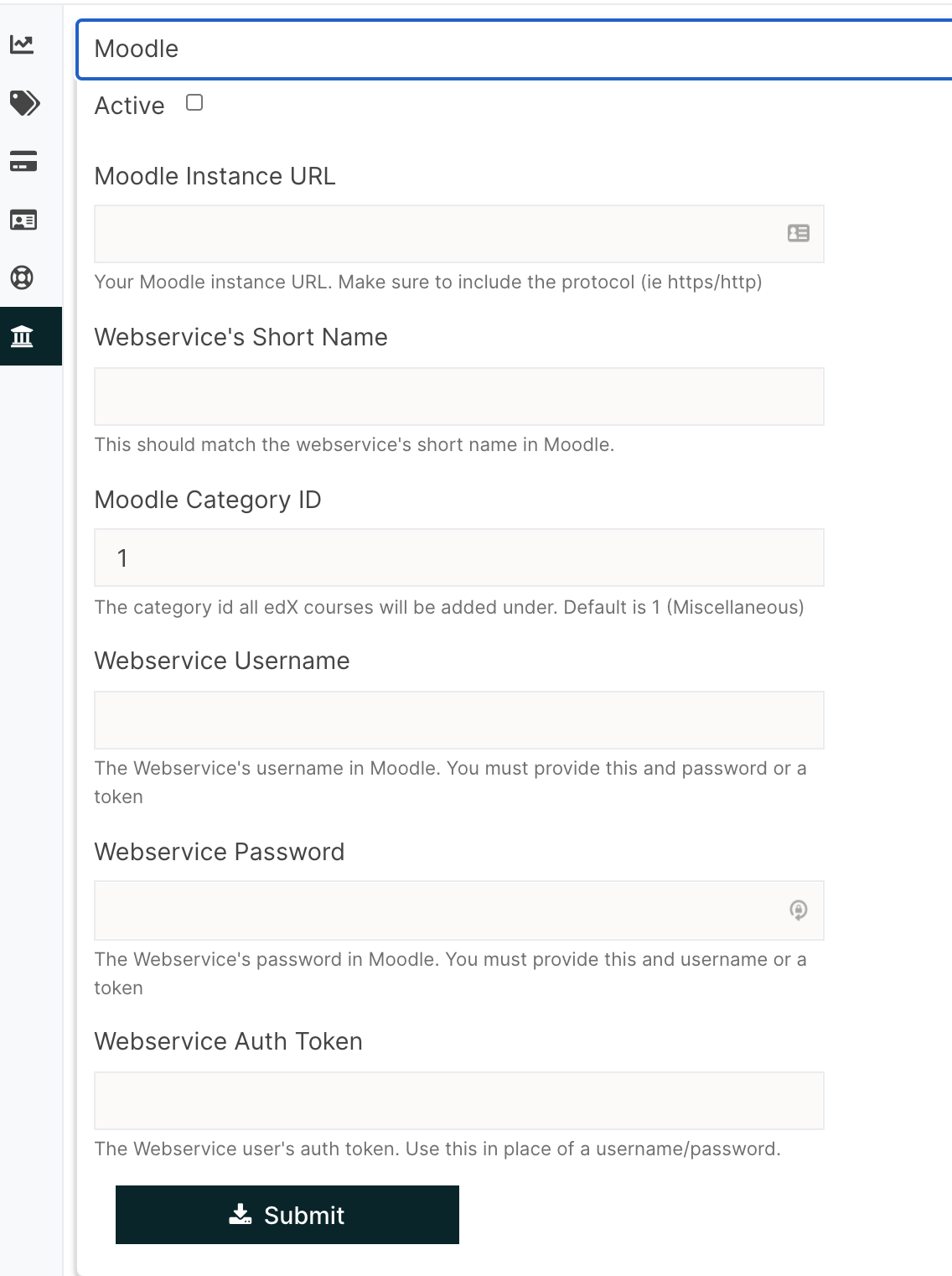
Click on the + sign next to Moodle to add your moodle instance configuration:
Complete the fields required for the configuration, as follows:
Moodle Instance URL: make sure the URL begins with https:// (secure).
Web Service Short Name: this should match the service short name in Site administration > Plugins > Web services > External services > External service
Moodle Category ID: this is the category ID that the edX courses will be added under. If you want the edX courses to be in a separate/new category, please provide that ID in this field.
Webservice username and password are not required as long as you provide the Webservice Auth Token created in Step 8.
Once all the key pieces of information are provided, select the Active check box at the top