Once you have set up your REST integration in Blackboard, you will be able to configure an integration with your Blackboard LMS using the edX Administrator Portal.
Login to the edX Admin Portal: https://portal.edx.org/ using your admin account (contact your edX Customer Success representative if you need help obtaining access)
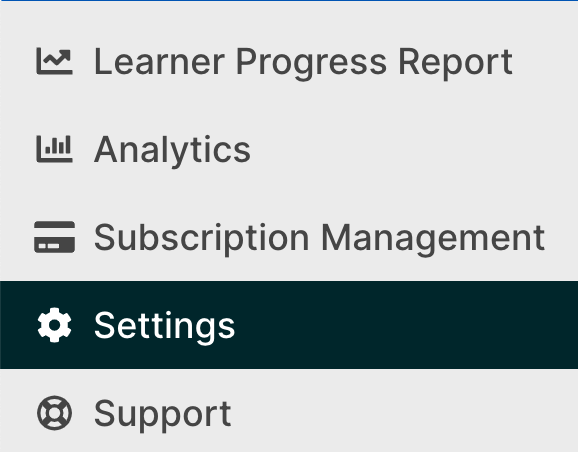
Using the Left toolbar, navigate to the Settings page:
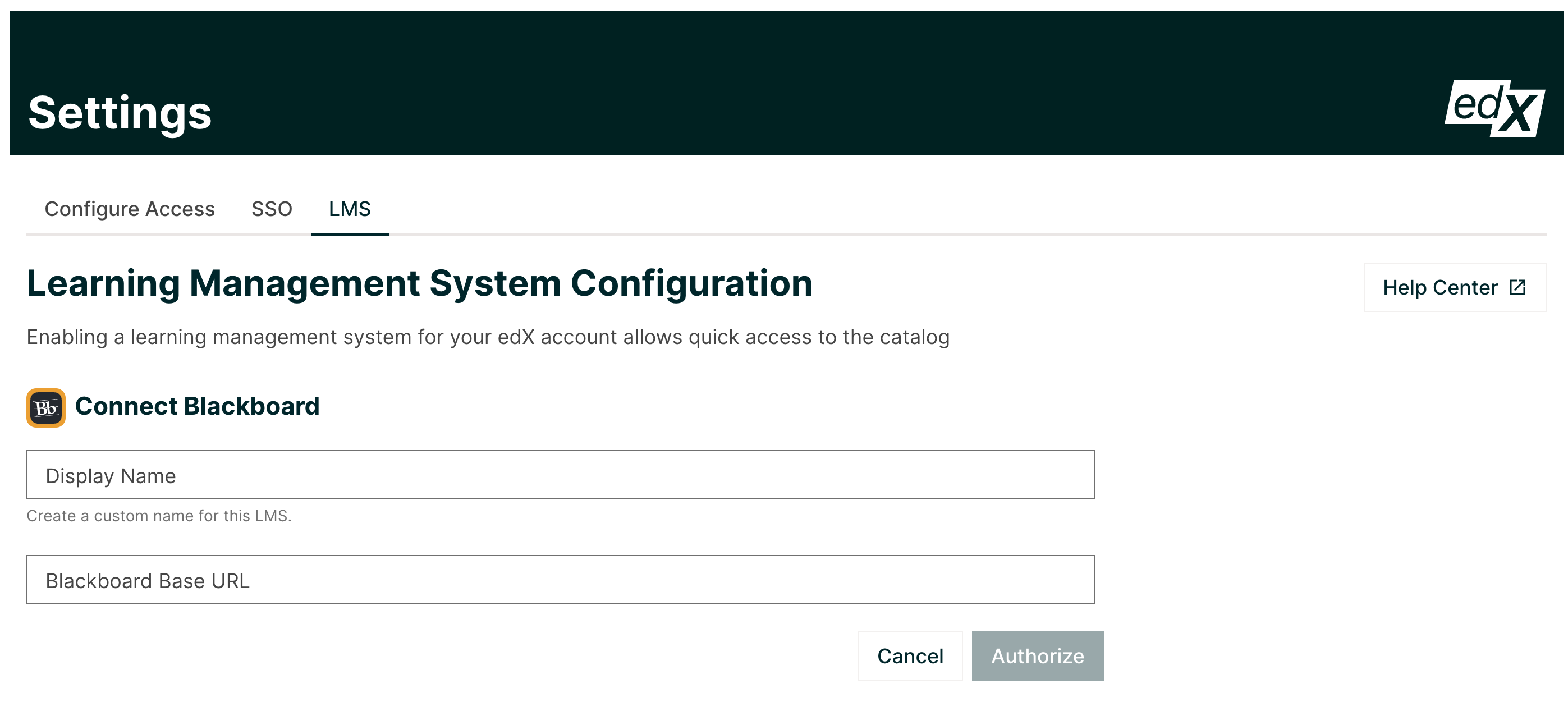
Click on the + New Configuration to add your Blackboard instance configuration:

Fill in the Base URL provided by Blackboard and then click Authorize
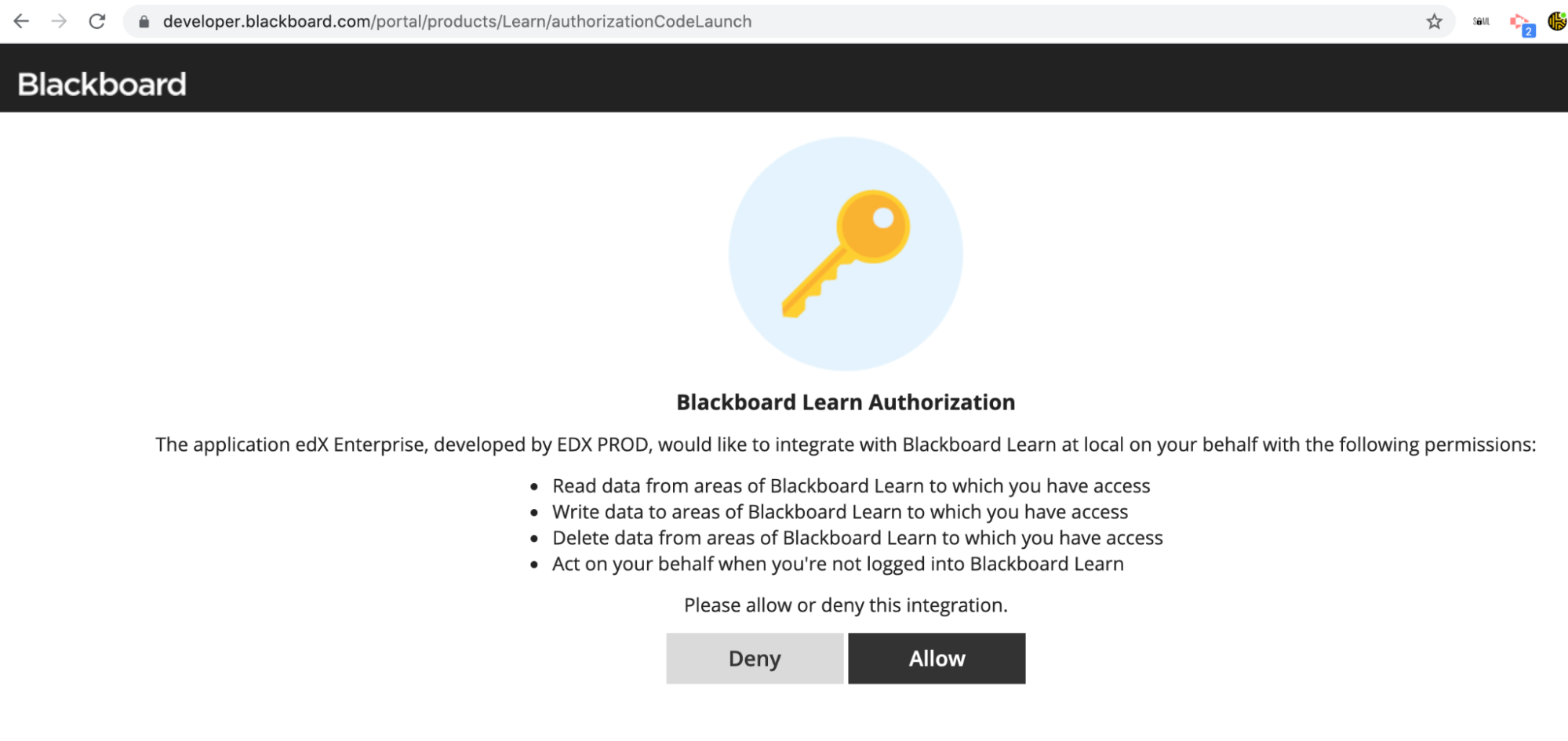
You will be navigated to the Blackboard site and must authorize the edX integration by clicking on ‘Allow’. This will allow the edX system to generate and store a refresh token to use for future API calls.
You will see a confirmation screen with a URL like this:
https://courses.edx.org/blackboard/oauth-complete?code=xkCsQNG9jXPrfNhfUgHoYZWGyzUFZzrW&state=8ea70d02-c210-4009-a86d-e23423dcda7d
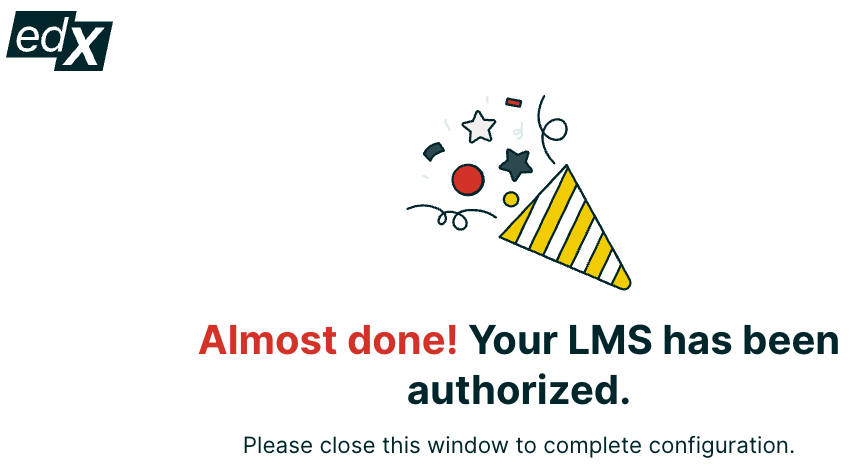
The edX system can now Create, Update or Delete courses, and post grades to the courses (from edX grading data).
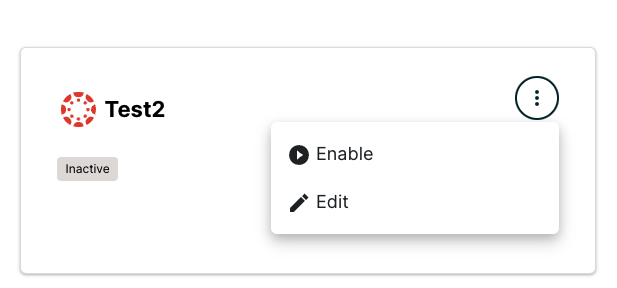
Your new configuration should appear in the LMS tab as Inactive. Click the top right corner of the configuration badge, and select Enable once you are ready to begin receiving transmissions.