
For edX to push new content and learner progress into SuccessFactors LMS, a system user must be provisioned, and API access must be granted. In this section, we will review the steps required to authorize communication between the two systems.
Before proceeding, ensure you have configured and enabled SSO for your edX account. If you enable content syncing before completing the SSO configuration, course launches will fail.
Create OCN Admin Role
To create an OCN admin profile in SuccessFactors, take the following steps:
-
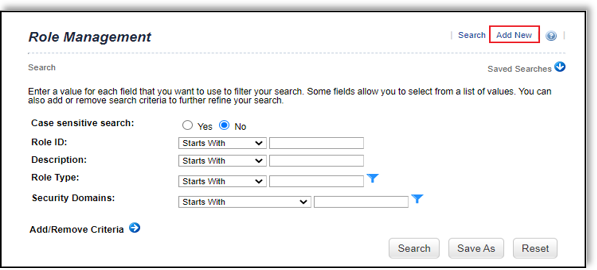
Log in to the SuccessFactors Learning Administration environment and go to System Administration > Security > Role Management.
-
Click Add New.
-
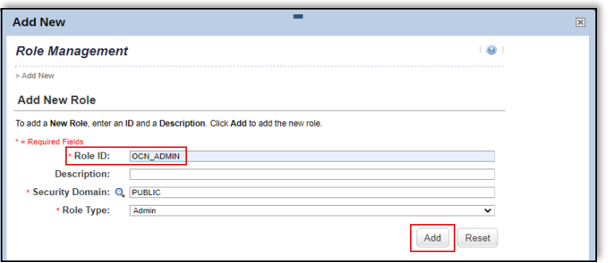
In the Role ID field, enter "OCN_ADMIN".
-
Click Add.
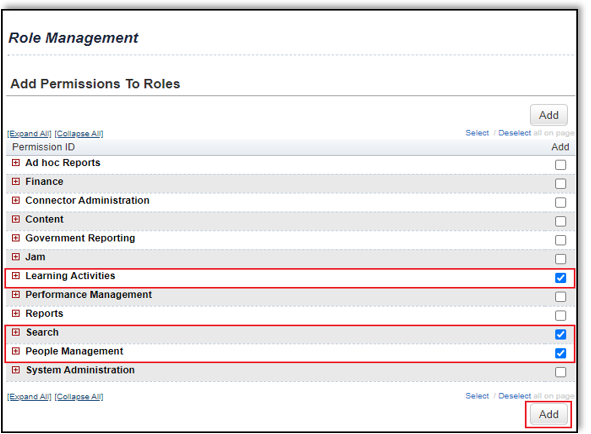
- Select Permissions, then click the link under Add Permissions to the Role.

- Under Add Permissions to Roles, enable Learning Activities, Search, and People Management.
 :
:
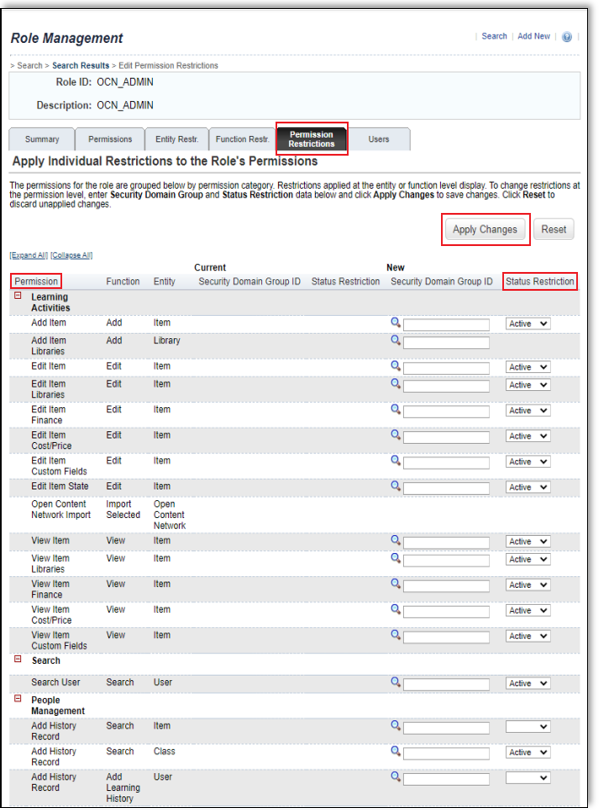
- Set Status Restriction to "Active" for each activity under Permission Restrictions:
-
Add Item
-
Add Item Libraries
-
Edit Item
-
Edit item Libraries
-
Edit Item Finance
-
Edit Item Cost/Price
-
Edit Item Custom Fields
-
Edit Item State
-
Open Content Network Import
-
View Item
-
View Item Libraries
-
View Item Finance
-
View Item Cost/Price
-
View Item Custom Fields
-
Search User
-
Add History Record
- Add Learning History (more info in SAP's Help Center)
- Click Apply Changes.
Create System Admin User
To create a system admin user in SuccessFactors, take the following steps:
-
Log in to the SuccessFactors Learning Administration environment and go to System Administration > Security > Administrators.
-
In the upper right-hand corner of the screen, click Add New.
-
In the Admin ID field, enter "edx_admin".
-
Enter a new password in the password fields.
-
Click Add.

6. Select the Assigned Roles tab. If this integration is your first SuccessFactors instance, click Edit.
7. In the Role ID field, enter "OCN_ADMIN", then click Add.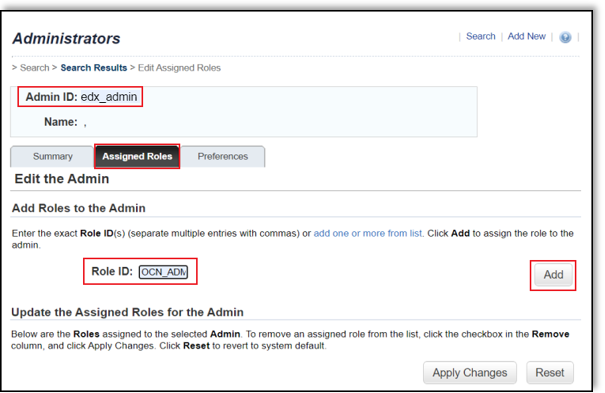
8. Select the Summary tab.
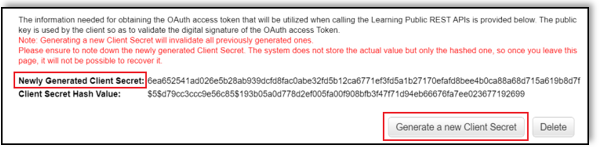
9. Scroll to the bottom of the page and select Generate a new Client Secret. Save the client secret to your clipboard or desktop for later reference.
IMPORTANT:
Do not copy the hashed secret value. The client secret should not contain dollar signs or any special characters.